James Webb Image Editing Process
1. Downloading Images from MAST
To start, download images from the JWST or any other instrument using the MAST portal.
Steps:
- Navigate to the MAST portal and use the search bar to find your target object.
- Use the Astroview feature to see all frames available with the target in the field of view (FOV). This feature helps you understand the context of each frame.
- Download the images you need, making sure to note the wavelengths for future reference.
- Alternatively, explore the JWST image gallery. When you find an image you like, click on "fast facts" to obtain the object name or data proposal to search for in the MAST archive.
Organize your downloaded files in a dedicated folder for easy access during the editing process.
For a detailed video tutorial on how to download images from MAST, please watch the video below:
2. Siril - Stretching and Star Alignment
If you have PixInsight, skip to step 3 as it will be used instead of Siril.
Download Siril from here.
Steps:
- Convert FITS to FIT: Open Siril, set your working directory to the folder with your images, add the images, set a sequence name, and click convert.
- Global Star Alignment: Use this tool to scale and align the images. Ensure you set the reference image to one of the larger images for better alignment.
- Stretch and Rescale: All JWST images initially appear black. Use the Generalized Hyperbolic Transformation (GHT) tool to stretch and rescale them, revealing prominent features. Start with a local stretch intensity around 8-13 and a stretch factor around 0.5-3.5, adjusting as needed.
- Save: Once all images are stretched and rescaled, save them in FIT or TIFF format to be opened with GIMP.
If the alignment fails, try changing the reference image to another larger image and check that all images are of the same size.
For a detailed video tutorial on using Siril for stretching and star alignment, please watch the video below:
3. PixInsight - Paid Alternative to Siril
Download PixInsight from here.
Steps:
- Open Images: Open all images downloaded from MAST. Close all files except for the “i2d_SCI” frames.
- Auto Stretch: Use the auto stretch button to preview the images. This helps in visualizing the data before processing.
- Crop Edges: Use the dynamic crop tool (PROCESS / GEOMETRY / DYNAMIC CROP) to remove black edges.
- Star Alignment: Use the Star Alignment tool to align the images. Draw a box in roughly the same spot on all images to define the alignment area. Choose one of the larger, higher-resolution images as the reference.
- Histogram Transformation: Apply a histogram transform (PROCESS / INTENSITY TRANSFORMATION / HISTOGRAM TRANSFORM) to enhance the contrast and details.
- Create Mosaics: If creating a mosaic, use the overlapping stars in the FOV to align and stitch the images together.
Save your intermediate steps so you can easily revert if needed.
For a detailed video tutorial on using PixInsight, please watch the video below:
4. GIMP - Stacking Images, Color Mapping, Noise Reduction, Sharpening Features
Download GIMP from here.
Steps:
- Open as Layers: Insert all the aligned and stretched images from Siril or PixInsight as layers (file / open as layer).
- Change Color Space: Change the color space from black/white to RGB (image / mode / RGB).
- Colorize: Use the colorize feature to select a color associated with the image's wavelength (Colors / colorize). Ensure scientific accuracy by following a consistent color grading scheme based on the filter used.
- New From Visible: Create a single image from all the layers using “New From Visible” (Layer / New From Visible).
- Adjust Colors: Use tools like Hue Saturation and Curves for further color adjustments and to balance the overall image.
- Sharpen Features: Apply Unsharp Mask (Filters / Enhance / Unsharp Mask) to enhance details. Use the paint tool to fill in the dark centers of stars, sampling directly around the star for accuracy.
Be cautious with color adjustments and sharpening to maintain the scientific integrity of the image.
For a detailed video tutorial on using GIMP, please watch the video below:
5. Hot Pixel and Cosmic Ray Removal
Many unprocessed Hubble images contain unwanted artifacts, such as hot pixels and cosmic rays. These artifacts can interfere with scientific analysis and image clarity. Below is a comparison of an unprocessed image and a cleaned image of the iconic Pillars of Creation:
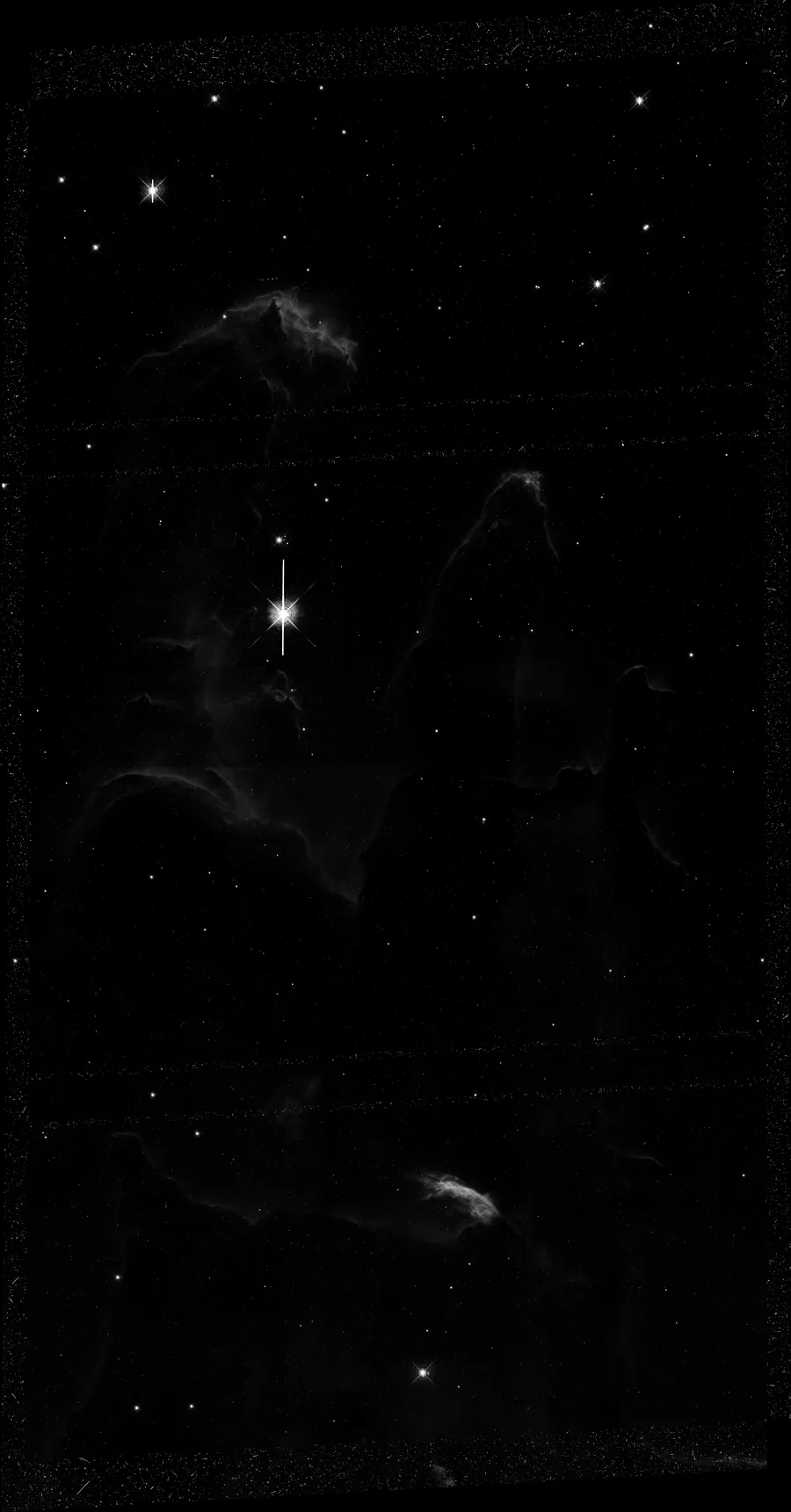
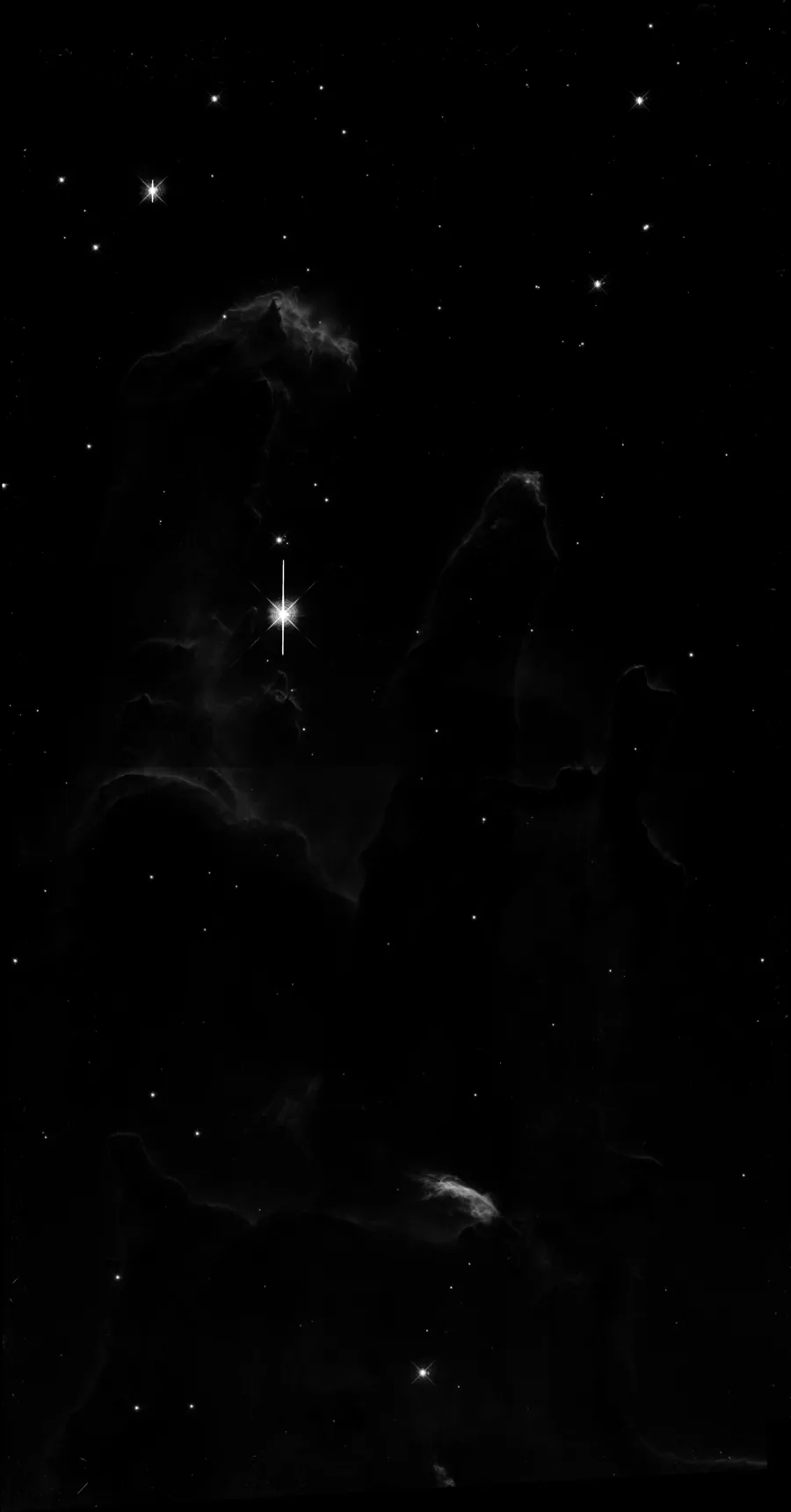
This step involves using a Python script to clean your astronomical images of these artifacts, enhancing the overall data quality for further processing or visualization.
You can access the Python script here. Below are the features and adjustable parameters in the script:
- sigclip: Adjusts the sigma-clipping threshold. A lower value detects more cosmic rays but may also flag valid pixels.
- sigfrac: Sets the fractional threshold for neighboring pixel detection to refine the cosmic ray removal.
- objlim: Controls the object detection limit, useful for handling smaller or faint objects in your images.
- gain: Helps differentiate cosmic rays from valid signal by incorporating image gain.
- readnoise: Incorporates realistic read noise values to improve the accuracy of the cosmic ray detection.
- satlevel: Defines the saturation level to prevent misclassification of bright objects as cosmic rays.
Additional fine-tuning steps include:
- Two passes of median filtering for stubborn hot pixels with
sizevalues adjustable to suit your data. - Customizable output FITS file headers to retain essential metadata.
Simply specify the path to the image in your PC, and specify a name for the output file and run the code. Slight adjustments may need to be made to the parameters outlined above.